Portrait editor
Change a backdrop while trying to retain the subject's pose and framing.
Write preservation instructions, then inspect the face and hairline closely in every result.
Image editing guide
Start with an image you want to change, then describe what should look different and what should stay. Img2img is most useful when the source already has a composition worth keeping.
Partner editor · Link only
Partner link only. Sign in if asked, open the paid photo editor at /edit, and upload your image and enter any instructions there. Img2img does not send an image or prompt; there is no free generation here.
Open Supavisual photo editor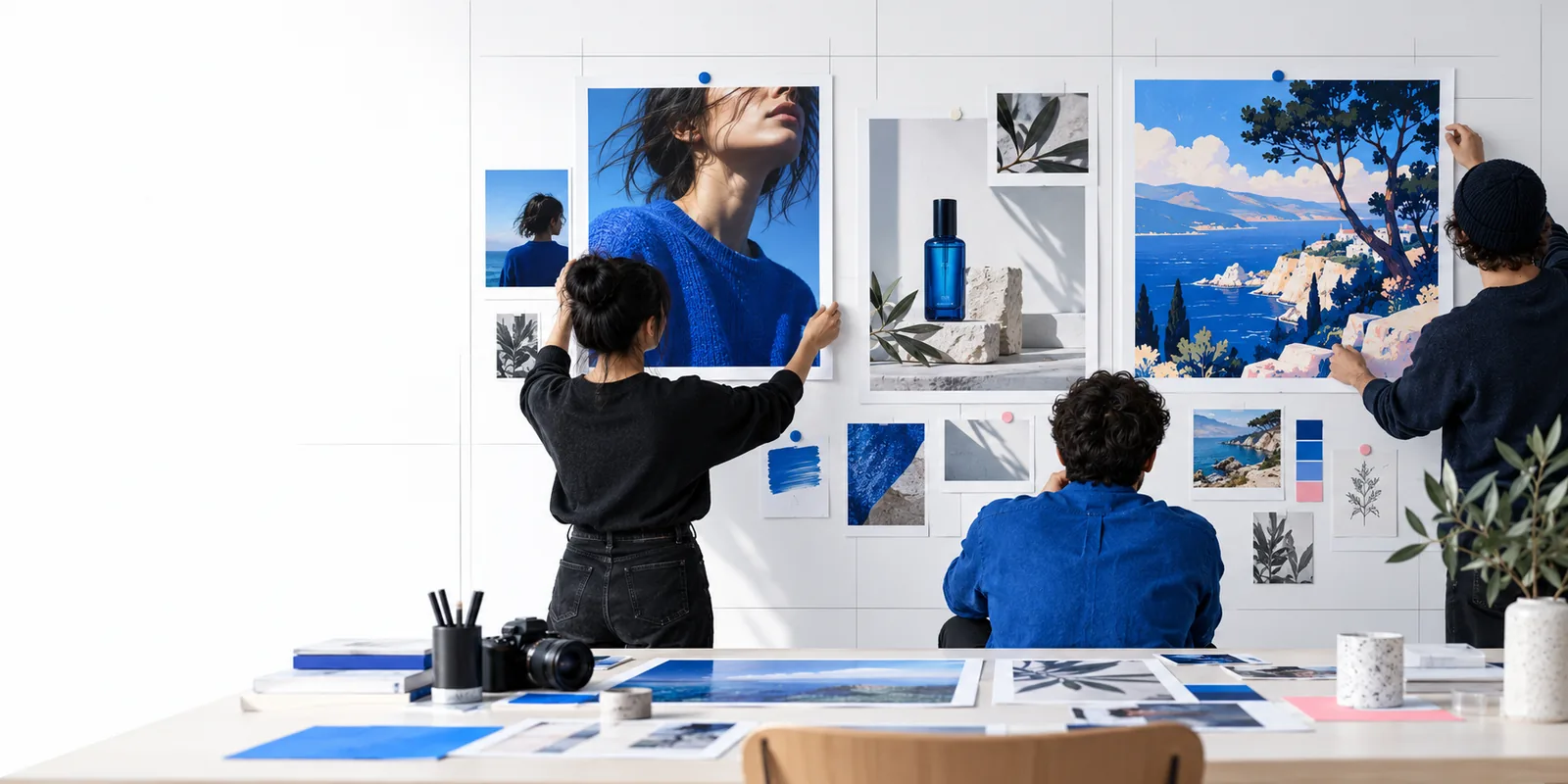
The same source-image idea applies across several workflows, but the right instructions depend on how much you want to change.
Working online simplifies access to an editing surface; it does not make every visual change predictable. Check the destination's available tools before committing to a particular workflow.
A generated variation may change a face, logo, pattern, or small object even when your prompt says to keep it.
What to do instead
Name the features that must remain, compare the result against the source, and use a more targeted edit when exact preservation matters.
Do not assume the linked editing destination offers a strength slider, mask, particular model, or export format. Browser-based tools differ.
What to do instead
Inspect the available controls first, then adapt the task to what the destination actually supports.
An online workflow may require sending an image to a service. This page cannot establish that sensitive files remain on your device.
What to do instead
Read the destination's privacy terms and avoid uploading confidential or unlicensed material.
Treat the first attempt as a draft. A useful prompt specifies both the desired change and the parts of the image that should survive it.
Pick an image with a readable subject and enough space for the intended edit. If a crucial detail is tiny or obscured, the result will be harder to judge.
State the new style, setting, or material, then identify what should stay: for example, the person's pose, camera angle, and overall framing.
Look for unwanted changes to identity, text, hands, edges, and layout. Revise one instruction at a time so you can tell what improved.
This is a workflow comparison, not a specification for the partner destination. The controls available in any particular tool need to be checked there.
| Browser-based workflow | Locally installed workflow | |
|---|---|---|
| Starting point | Open a web editing surface | Install and configure software |
| Image handling | May involve sending files to a service | Can keep files on your own machine, depending on setup |
| Hardware | Processing requirements depend on the service | Performance depends on your computer |
| Controls | Vary by the chosen website | Vary by installed software and extensions |
| Updates | The service manages its web interface | You manage installed versions |
| Connectivity | Requires access to the website | May work offline after setup |
A source image can establish the subject and framing while a prompt asks for a different visual direction. Judge a real edit against its own source, not against a showcase image.
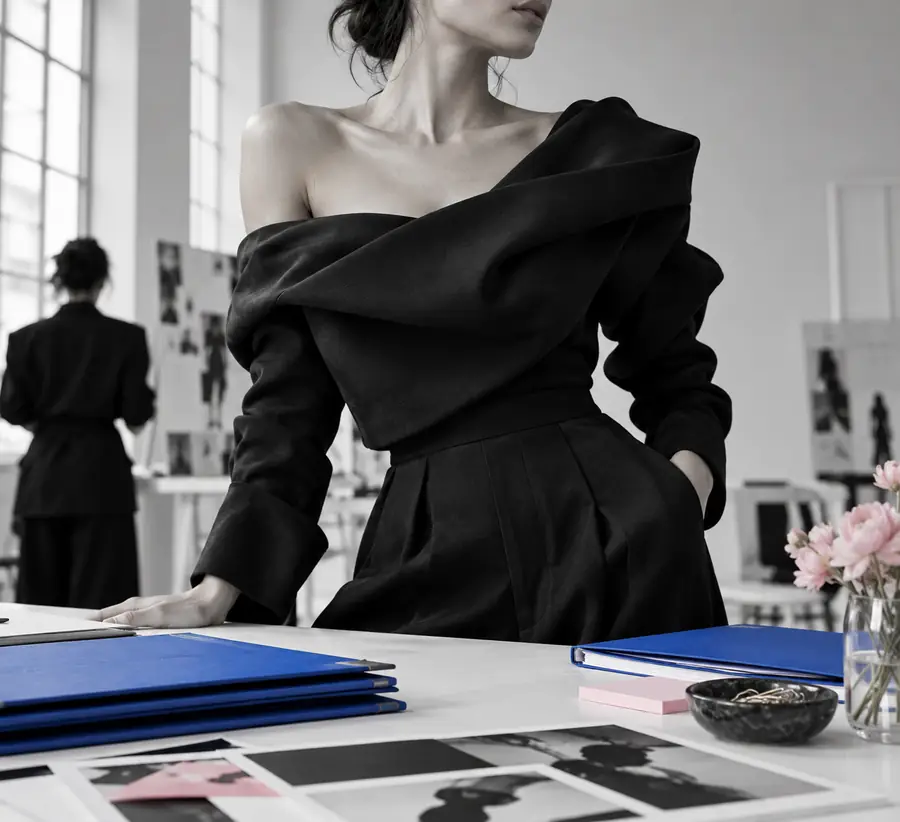

These are separate illustrative images, not a verified before-and-after transformation or a promised output.
Starting directionPossible directionA useful online editing plan begins with the kind of change you need, not a long list of style words. These examples point to different ways of approaching a source.
Change a backdrop while trying to retain the subject's pose and framing.
Write preservation instructions, then inspect the face and hairline closely in every result.
Test a different outfit direction using an existing portrait as visual context.
Specify the garment and what must remain unchanged, while allowing for imperfect fabric edges.
Try a new mood or setting without losing track of the original composition.
Begin with one clear change and compare it with the source before adding more instructions.
Use your source image as a reference and keep your first instruction focused. The button takes you to the partner destination, where you can check its current editing options before sharing an image.
Start with an image you have permission to use and a short description of the change you want. The destination determines its own upload requirements and available controls, so check those before you begin.
A source image can provide compositional guidance, but a result may still alter the pose, crop, or small details. State the elements you want preserved and compare each result with the original.
No. Browser-based editing describes where you access a tool, while Stable Diffusion refers to a model family that some tools use. A website's interface alone does not tell you which model powers it.
Only after checking the destination's privacy terms and deciding you are comfortable sharing it. For confidential images, consider a workflow that keeps files on a device you control.
A targeted editing or inpainting workflow may be a better fit than a broad image-to-image variation. Check whether your chosen tool offers a selection or mask, and inspect the boundary of the changed area.